Working with Word and PowerPoint Files in Python

In daily work, many simple and repetitive tasks can be completely handed over to Python programs, such as batch generating many Word files or PowerPoint files based on template files. Word is a word processing program developed by Microsoft that everyone is familiar with. Many formal documents in daily office work are written and edited using Word. The current Word file extension is generally .docx. PowerPoint is a presentation program developed by Microsoft and is a member of Microsoft’s Office suite. It is widely used by business people, teachers, students, and other groups, and is usually referred to as “slides”. In Python, you can use a third-party library called python-docx to manipulate Word, and a third-party library called python-pptx to generate PowerPoint.
Working with Word Documents
We can first install the python-docx third-party library with the following command.
pip install python-docxAccording to the official documentation, we can use the following code to generate a simple Word document.
from docx import Document
from docx.shared import Cm, Pt

from docx.document import Document as Doc

# Create a Doc object representing the Word document
document = Document()  # type: Doc
# Add main heading
document.add_heading('Learning Python Happily', 0)
# Add paragraph
p = document.add_paragraph('Python is a very popular programming language, it is ')
run = p.add_run('simple')
run.bold = True
run.font.size = Pt(18)
p.add_run(' and ')
run = p.add_run('elegant')
run.font.size = Pt(18)
run.underline = True
p.add_run('.')

# Add level 1 heading
document.add_heading('Heading, level 1', level=1)
# Add paragraph with style
document.add_paragraph('Intense quote', style='Intense Quote')
# Add unordered list
document.add_paragraph(
    'first item in unordered list', style='List Bullet'
)
document.add_paragraph(
    'second item in ordered list', style='List Bullet'
)
# Add ordered list
document.add_paragraph(
    'first item in ordered list', style='List Number'
)
document.add_paragraph(
    'second item in ordered list', style='List Number'
)

# Add image (note that the path and image must exist)
document.add_picture('resources/guido.jpg', width=Cm(5.2))

# Add section break
document.add_section()

records = (
    ('Luo Hao', 'Male', '1995-5-5'),
    ('Sun Meili', 'Female', '1992-2-2')
)
# Add table
table = document.add_table(rows=1, cols=3)
table.style = 'Dark List'
hdr_cells = table.rows[0].cells
hdr_cells[0].text = 'Name'
hdr_cells[1].text = 'Gender'
hdr_cells[2].text = 'Date of Birth'
# Add rows to the table
for name, sex, birthday in records:
    row_cells = table.add_row().cells
    row_cells[0].text = name
    row_cells[1].text = sex
    row_cells[2].text = birthday

# Add page break
document.add_page_break()

# Save document
document.save('demo.docx')Tip: The comment
# type: Docon line 7 of the above code is to get code completion hints in PyCharm, because if the specific data type of the object is not clear, PyCharm cannot provide code completion hints for theDocobject in subsequent code.
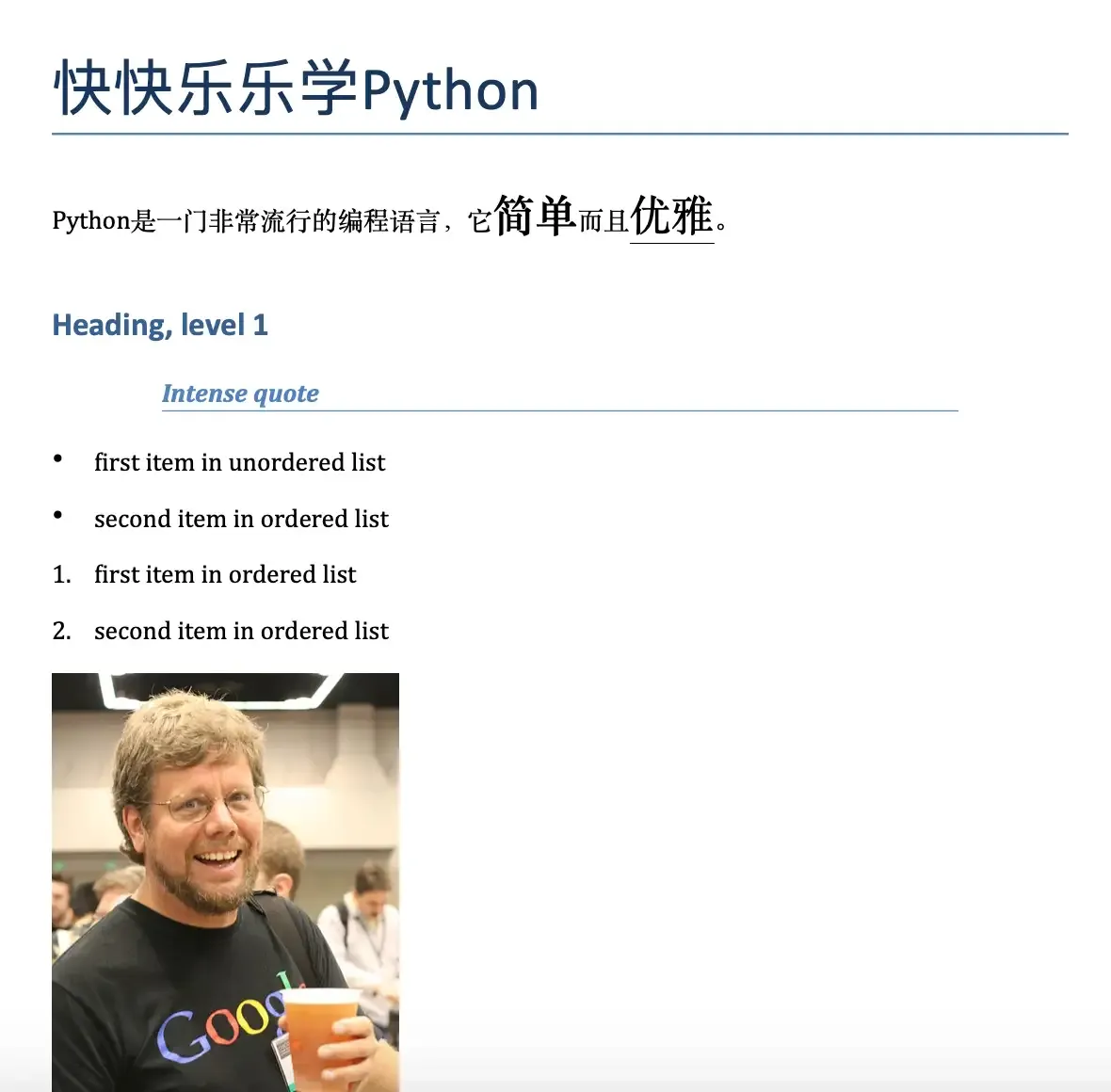
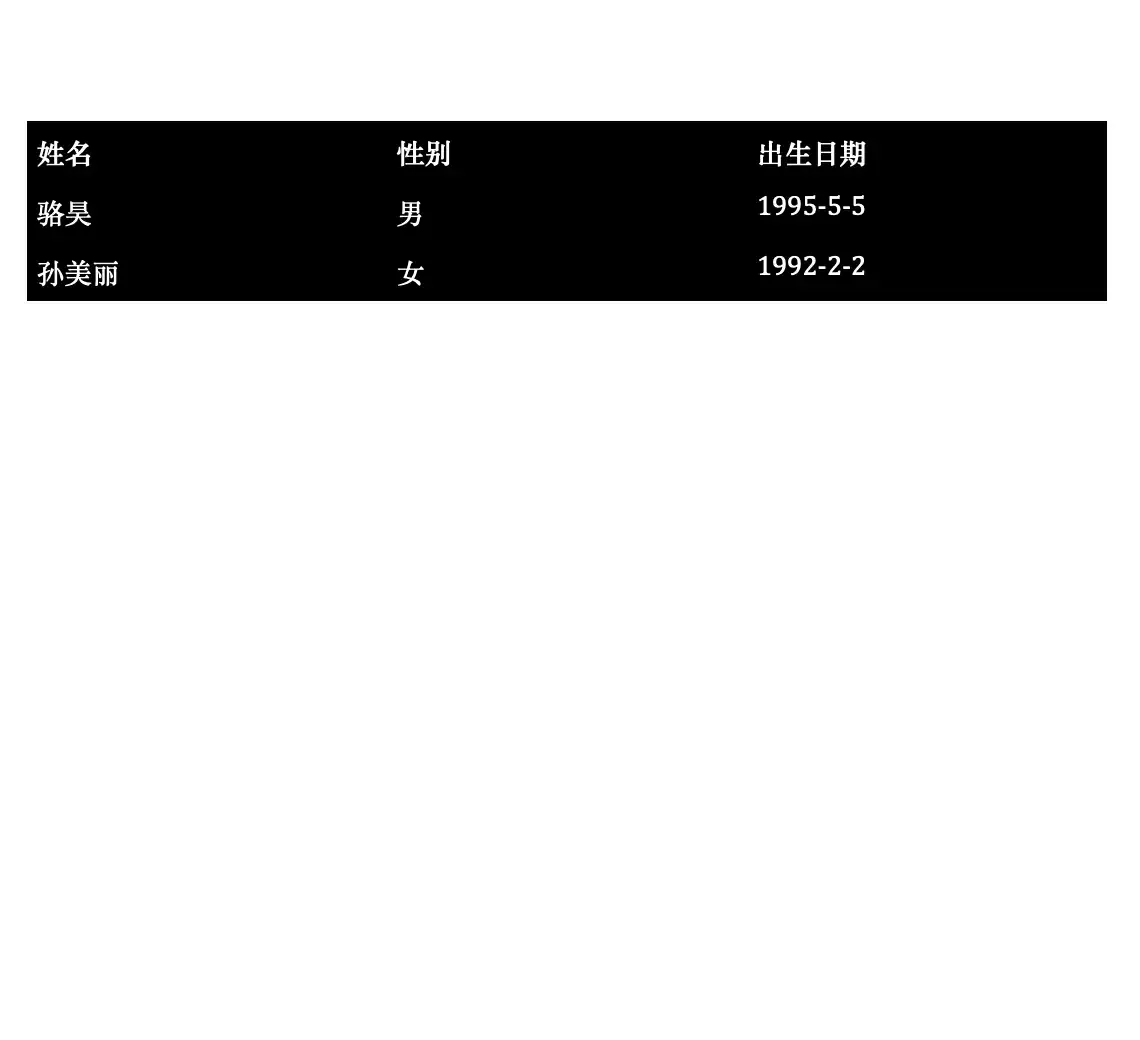
After executing the above code and opening the generated Word document, the effect is shown in the following figure.
For an existing Word file, we can traverse all its paragraphs and get the corresponding content through the following code.
from docx import Document
from docx.document import Document as Doc

doc = Document('resources/resignation_certificate.docx')  # type: Doc
for no, p in enumerate(doc.paragraphs):
print(no, p.text)Tip: If you need the Word file in the above code, you can obtain it through the following Baidu Cloud link. Link: https://pan.baidu.com/s/1rQujl5RQn9R7PadB2Z5g_g Extraction code: e7b4.
The content read is as follows.
0
1 Resignation Certificate
2
3 This is to certify that Wang Dachui, ID number: 100200199512120001, worked in our unit's Development Department as a Java Development Engineer from August 7, 2018 to June 28, 2020, with no bad performance during employment. Due to personal reasons, the labor contract was terminated on June 28, 2020. All financial-related fees have been settled, and all procedures related to the termination of the labor relationship have been completed. There is no labor dispute between the two parties.
4
5 This is to certify!
6
7
8 Company Name (Seal): Chengdu Fengcheche Technology Co., Ltd.
9    			June 28, 2020
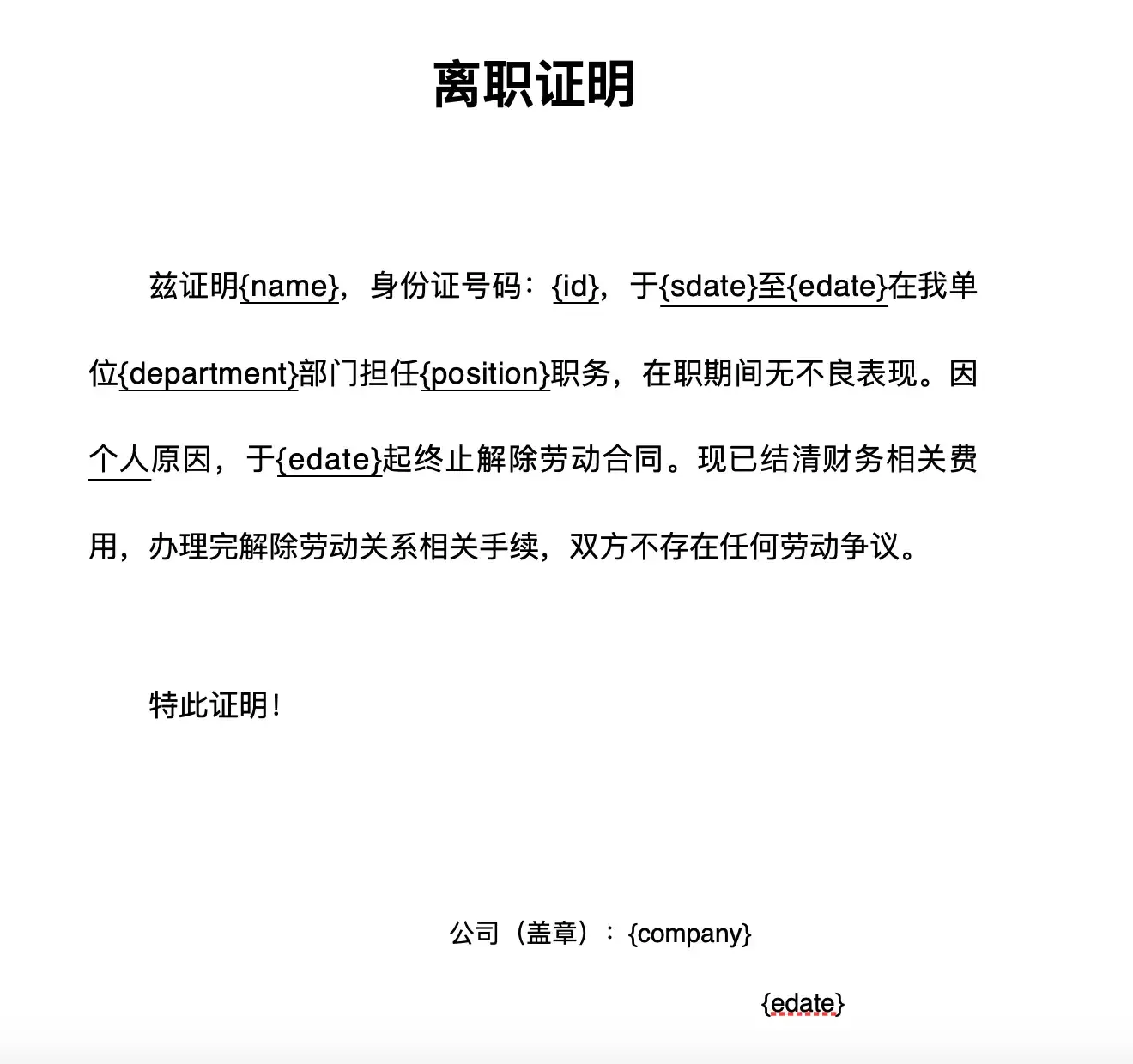
At this point, I believe many readers have already thought that we can make the above resignation certificate into a template file, replacing information such as name, ID number, employment and resignation dates with placeholders. By replacing the placeholders, we can write the corresponding information according to actual needs, so that Word documents can be generated in batches.
Following the above idea, we first edit a resignation certificate template file, as shown in the following figure.
Next, we read the file, replace the placeholders with real information, and generate a new Word document, as shown below.
from docx import Document
from docx.document import Document as Doc

# Save real information in a list using dictionaries
employees = [
    {
        'name': 'Luo Hao',
        'id': '100200198011280001',
        'sdate': 'March 1, 2008',
        'edate': 'February 29, 2012',
        'department': 'Product R&D',
        'position': 'Architect',
        'company': 'Chengdu Huawei Technologies Co., Ltd.'
    },
    {
        'name': 'Wang Dachui',
        'id': '510210199012125566',
        'sdate': 'January 1, 2019',
        'edate': 'April 30, 2021',
        'department': 'Product R&D',
        'position': 'Python Development Engineer',
        'company': 'Chengdu Gudao Technology Co., Ltd.'
    },
    {
        'name': 'Li Yuanfang',
        'id': '2102101995103221599',
        'sdate': 'May 10, 2020',
        'edate': 'March 5, 2021',
        'department': 'Product R&D',
        'position': 'Java Development Engineer',
        'company': 'Tongcheng Enterprise Management Group Co., Ltd.'
    },
]
# Loop through the list to batch generate Word documents
for emp_dict in employees:
    # Read the resignation certificate template file
    doc = Document('resources/resignation_template.docx')  # type: Doc
    # Loop through all paragraphs to find placeholders
    for p in doc.paragraphs:
        if '{' not in p.text:
            continue
        # Cannot directly modify paragraph content, otherwise styles will be lost
        # So need to traverse elements in the paragraph and find and replace
        for run in p.runs:
            if '{' not in run.text:
                continue
            # Replace placeholder with actual content
            start, end = run.text.find('{'), run.text.find('}')
            key, place_holder = run.text[start + 1:end], run.text[start:end + 1]
            run.text = run.text.replace(place_holder, emp_dict[key])
    # Save a Word document for each person
    doc.save(f'{emp_dict["name"]}_resignation_certificate.docx')
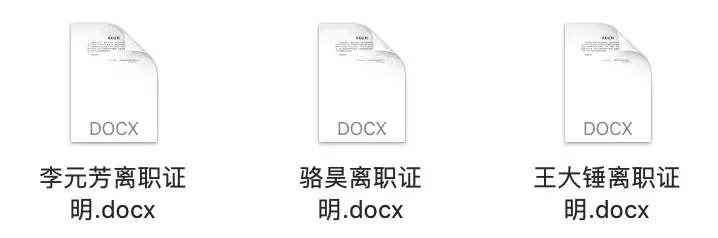
After executing the above code, three Word documents will be generated in the current path, as shown in the following figure.
Generating PowerPoint
First, we need to install the third-party library called python-pptx, with the following command.
pip install python-pptxUsing Python to manipulate PowerPoint content is not very common in practical application scenarios, so I don’t intend to elaborate here. Interested readers can read the official documentation of python-pptx on their own. Below is just a piece of code from the official documentation.
from pptx import Presentation

# Create presentation object
pres = Presentation()

# Select master and add a slide
title_slide_layout = pres.slide_layouts[0]
slide = pres.slides.add_slide(title_slide_layout)
# Get title and subtitle placeholders
title = slide.shapes.title
subtitle = slide.placeholders[1]
# Edit title and subtitle
title.text = "Welcome to Python"
subtitle.text = "Life is short, I use Python"

# Select master and add a slide
bullet_slide_layout = pres.slide_layouts[1]
slide = pres.slides.add_slide(bullet_slide_layout)
# Get all shapes on the page
shapes = slide.shapes
# Get title and body
title_shape = shapes.title
body_shape = shapes.placeholders[1]
# Edit title
title_shape.text = 'Introduction'
# Edit body content
tf = body_shape.text_frame
tf.text = 'History of Python'
# Add a level 1 paragraph
p = tf.add_paragraph()
p.text = 'X\'max 1989'
p.level = 1
# Add a level 2 paragraph
p = tf.add_paragraph()
p.text = 'Guido began to write interpreter for Python.'
p.level = 2

# Save presentation
pres.save('test.pptx')
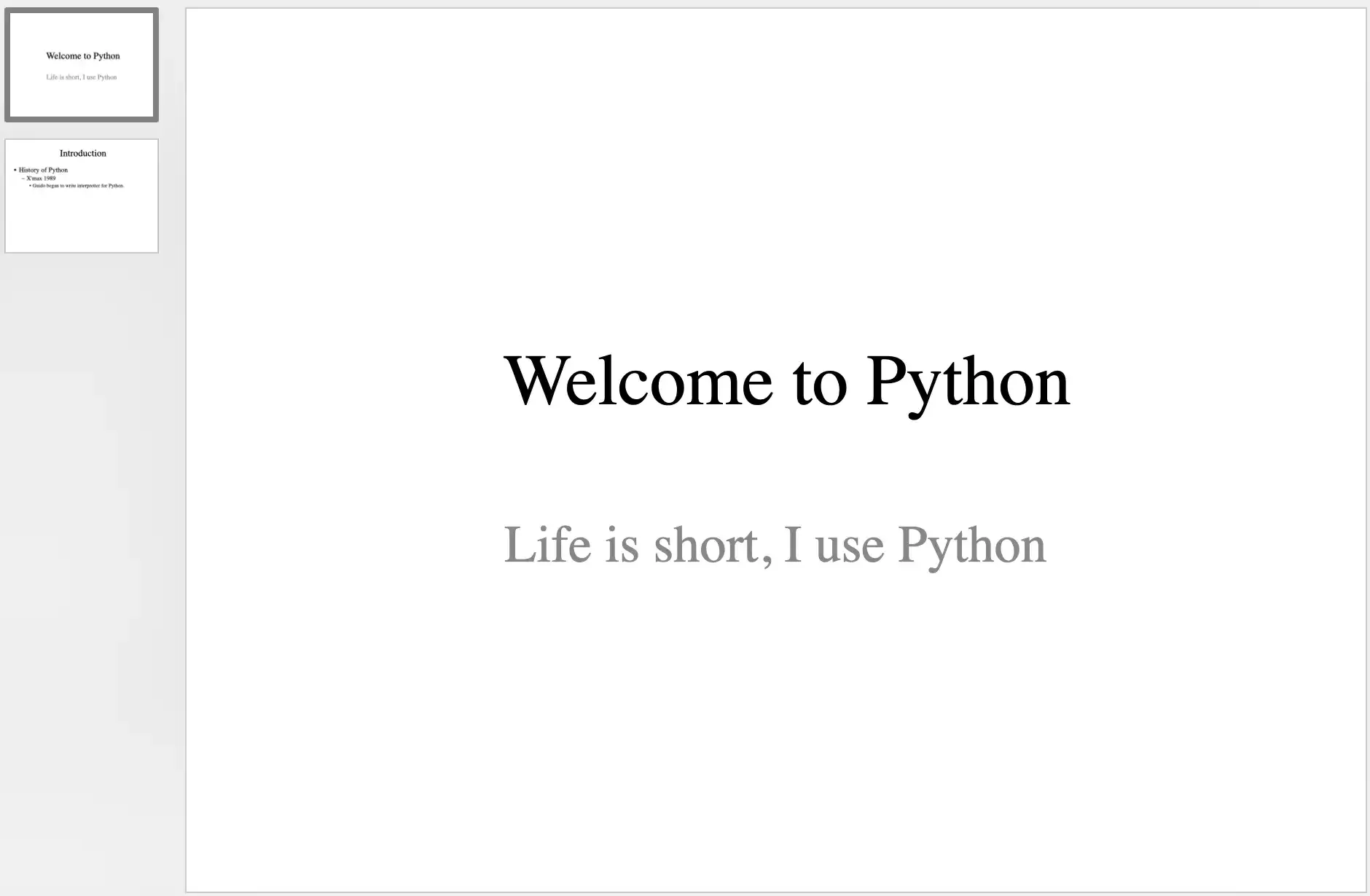
After running the above code, the generated PowerPoint file is shown in the following figure.
Summary
Using Python programs to solve office automation problems is really cool, as it can free us from tedious and boring labor. Writing such code is doing something once and for all. Even if the process of writing code is not very pleasant, using these codes should be very happy.