Your First Python Program
In the previous lesson, we learned about Python’s past and present, and prepared the interpreter environment needed to run Python programs. I’m sure you’re eager to start your Python programming journey, but a new question arises: where should we write Python programs, and how do we run them?
Tools for Writing Code
Below we’ll introduce several tools for writing and running Python code. You can choose the appropriate tool based on your needs. Of course, for beginners, I personally recommend using PyCharm because it doesn’t require much configuration and is very powerful, making it quite friendly for newcomers. If you’ve also heard of or like PyCharm, you can skip the introduction to other tools below and jump directly to the PyCharm section.
Default Interactive Environment
We can open Windows “Command Prompt” or “PowerShell” tool, enter python and press the Enter key. This command will take us to an interactive environment. An interactive environment means we enter a line of code and press the Enter key, and the code is executed immediately. If the code produces a result, that result will be displayed in the window, as shown below.
Python 3.10.10
Type "help", "copyright", "credits" or "license" for more information.
>>> 2 * 3
6
>>> 2 + 3
5
>>>Note: Users on macOS need to open the “Terminal” tool and enter
python3to enter the interactive environment.
If you want to exit the interactive environment, you can enter quit() in the interactive environment, as shown below.
>>> quit()Better Interactive Environment - IPython
The interactive environment mentioned above doesn’t provide a great user experience, as you’ll notice when you try it. We can use IPython to replace it, as IPython provides more powerful editing and interactive features. We can use Python’s package management tool pip to install IPython in the command prompt or terminal, as shown below.
pip install ipythonTip: Before using the above command to install IPython, you can first use the command
pip config set global.index-url https://pypi.doubanio.com/simpleorpip config set global.index-url https://pypi.tuna.tsinghua.edu.cn/simple/to change the download source to a domestic Douban mirror or Tsinghua mirror, otherwise the download and installation process may be very slow.
Next, you can use the following command to start IPython and enter the interactive environment.
ipythonNote: There’s also a web-based version of IPython called Jupyter, which we’ll introduce when we need it.
Text Editor - Visual Studio Code
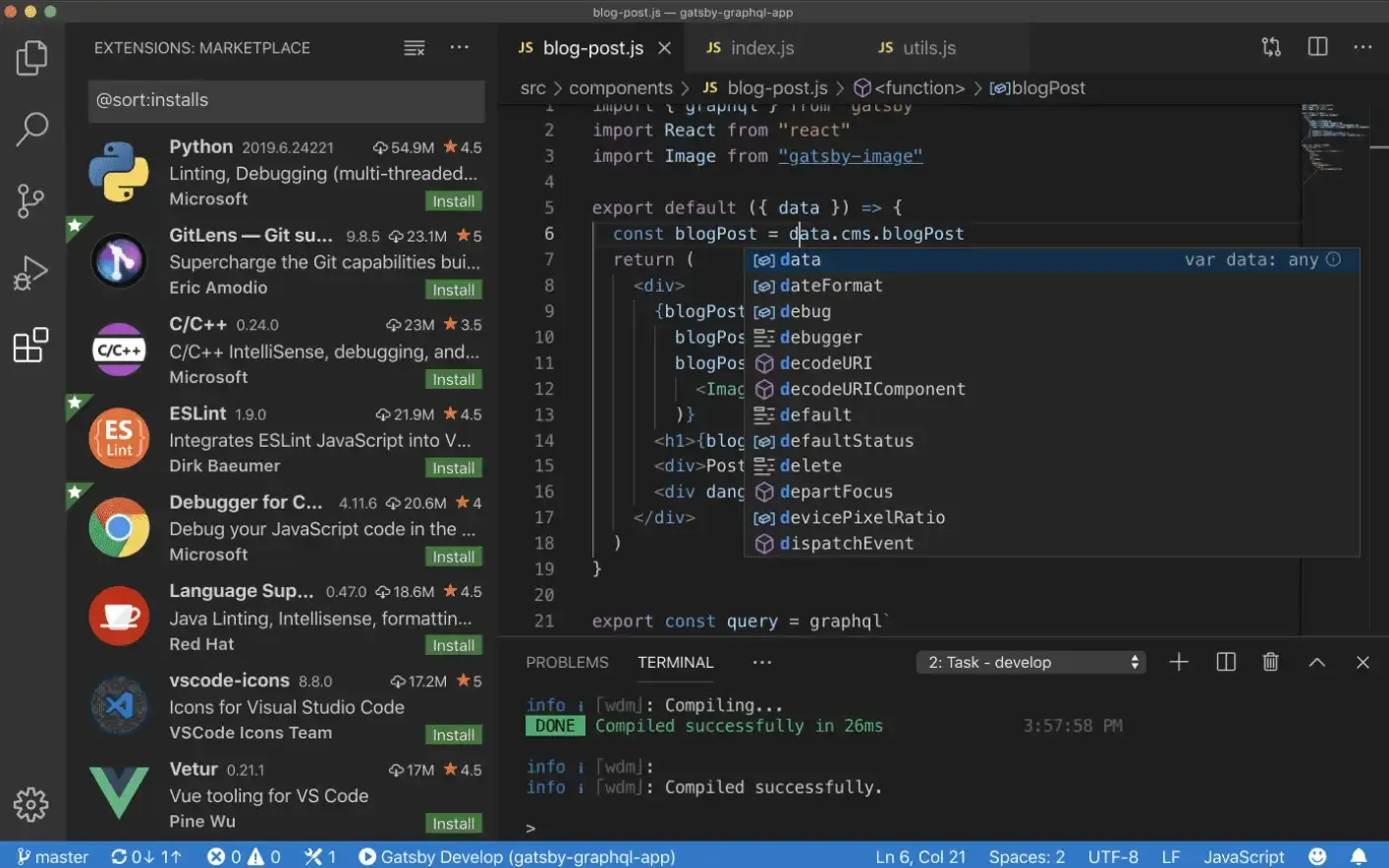
Visual Studio Code is a code editing tool developed by Microsoft that can run on Windows, Linux, and macOS operating systems. It supports syntax highlighting, auto-completion, multi-point editing, debugging, and a series of convenient features, and can support multiple programming languages. If you want to choose an advanced text editing tool, we strongly recommend Visual Studio Code. Interested readers can research its download, installation, and usage on their own.
Integrated Development Environment - PyCharm
If you’re developing commercial projects in Python, we recommend using the more professional tool PyCharm. PyCharm is an integrated development environment (IDE) for Python provided by a Czech company called JetBrains. An integrated development environment typically refers to a development tool that provides a series of powerful features and convenient operations such as writing code, running code, debugging code, analyzing code, and version control, making it particularly suitable for commercial project development. We can find PyCharm’s download link on JetBrains’ official website, as shown below.
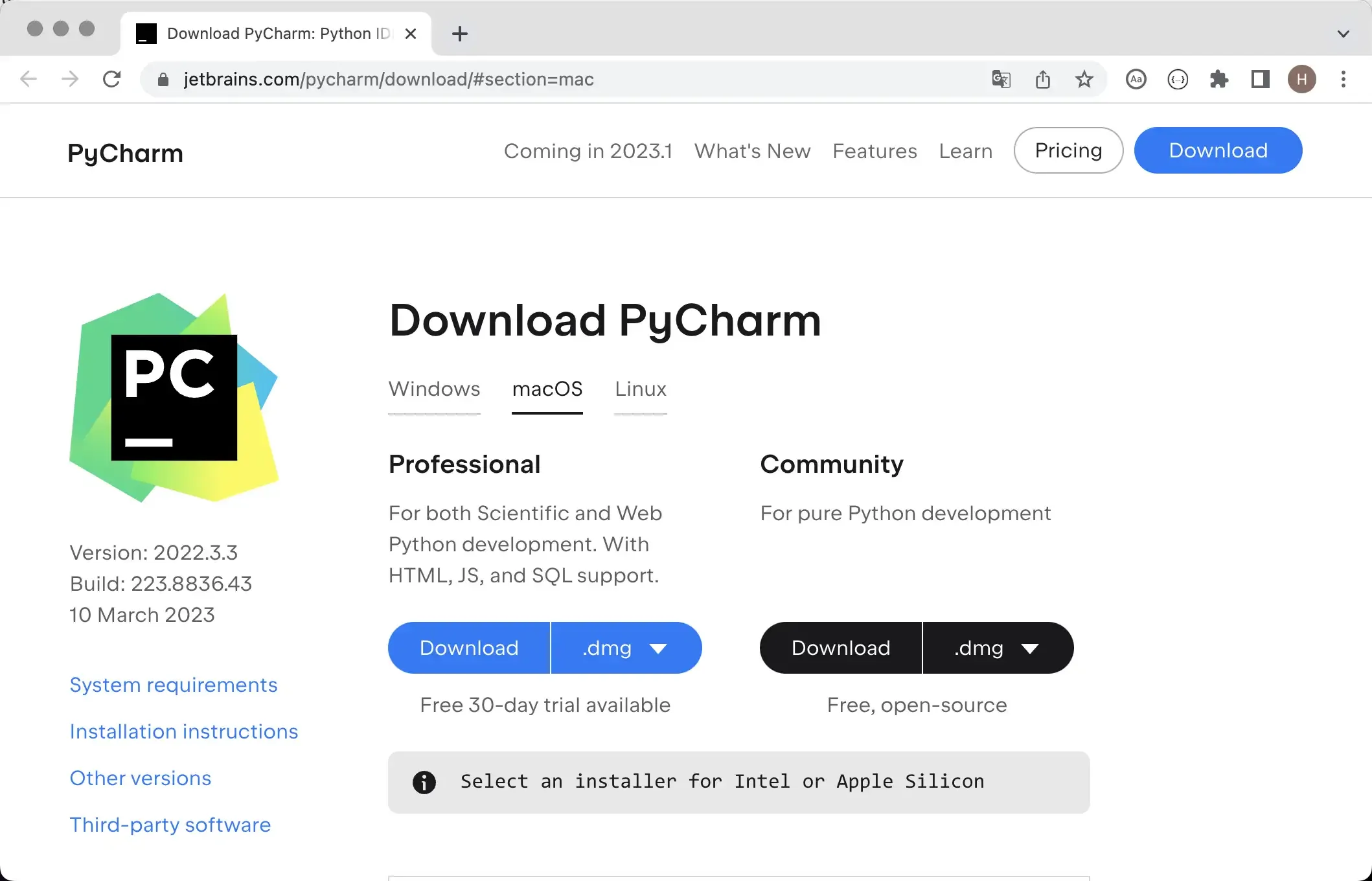
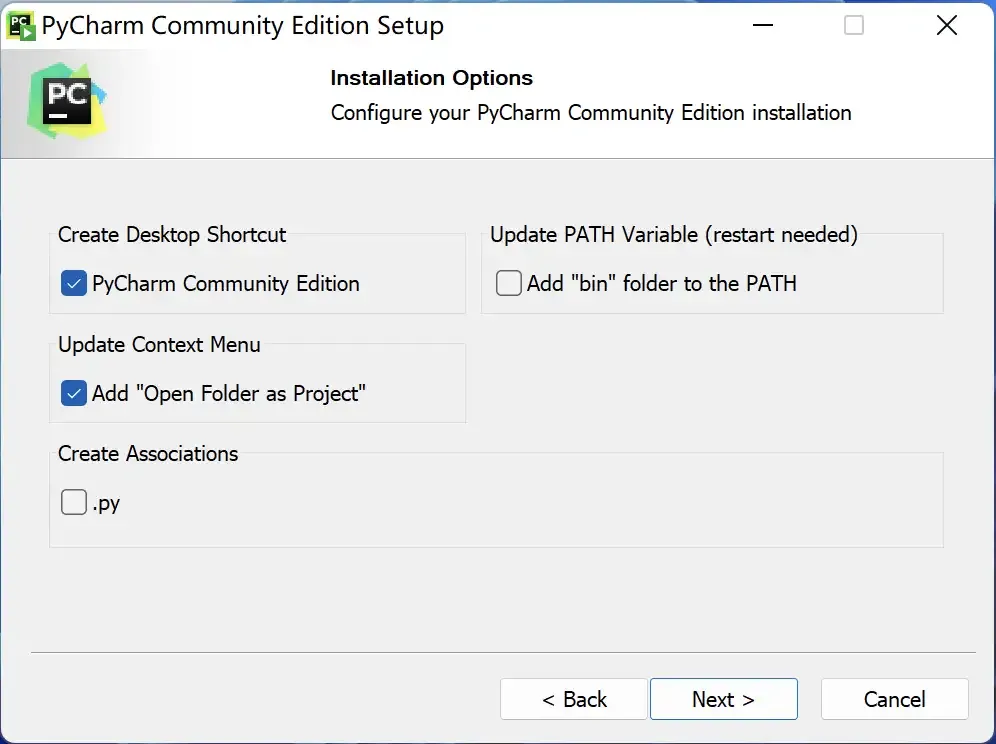
The official website provides two versions of PyCharm: one is the free Community Edition with relatively limited features, but completely sufficient for beginners; the other is the paid Professional Edition with very powerful features, but requires annual or monthly payment. New users can try it free for 30 days. PyCharm installation is not difficult at all. Run the downloaded installer and use almost all default settings for installation. For those using Windows systems, there’s one step where you can check “Create Desktop Shortcut” and “Add ‘Open Folder as Project’ to context menu” as shown below.
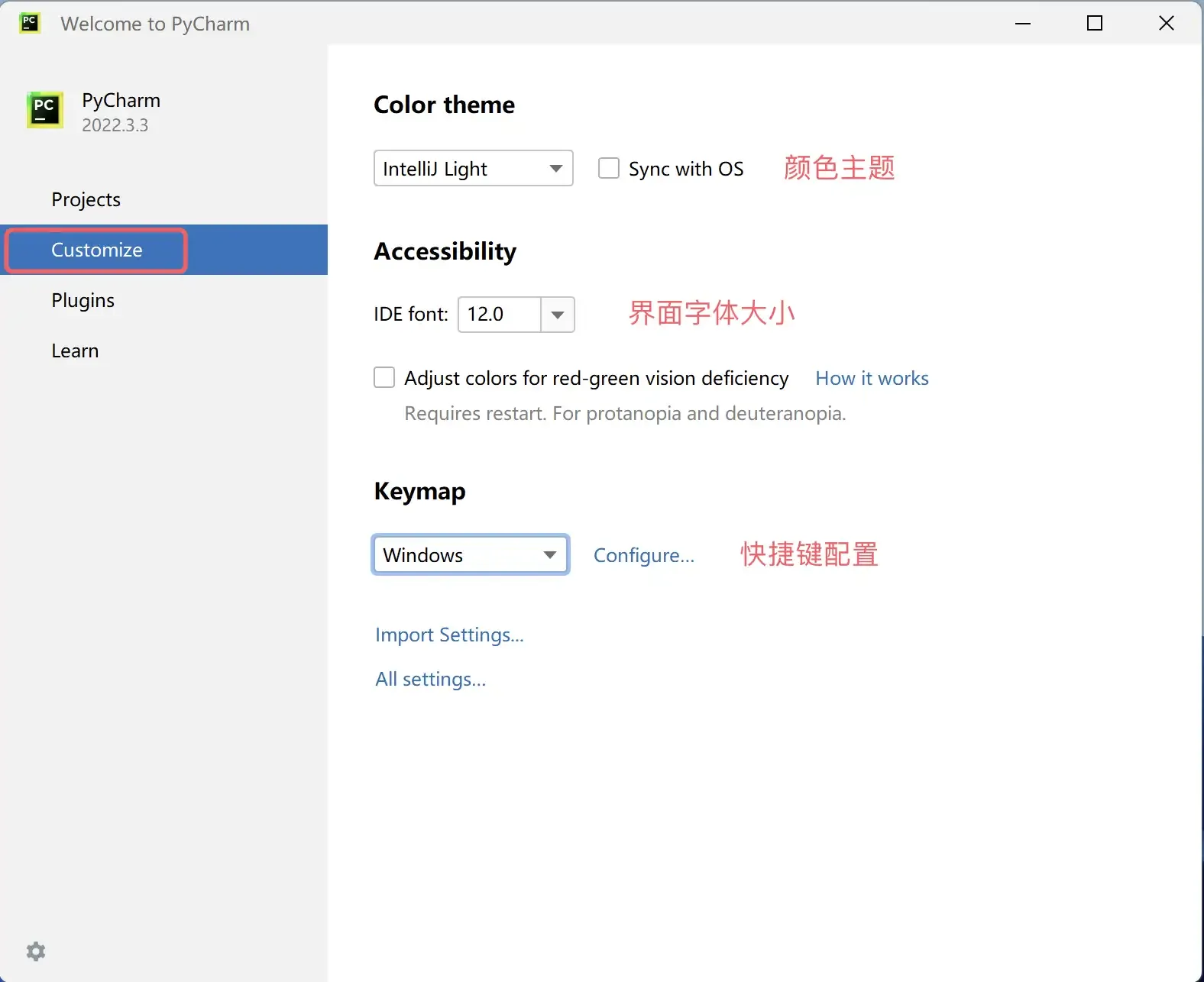
When running PyCharm for the first time, on the interface prompting you to import PyCharm settings, directly select “Do not import settings”, and then we can see the welcome interface shown below. Here, we can first click the “Customize” option to make some personalized settings for PyCharm.
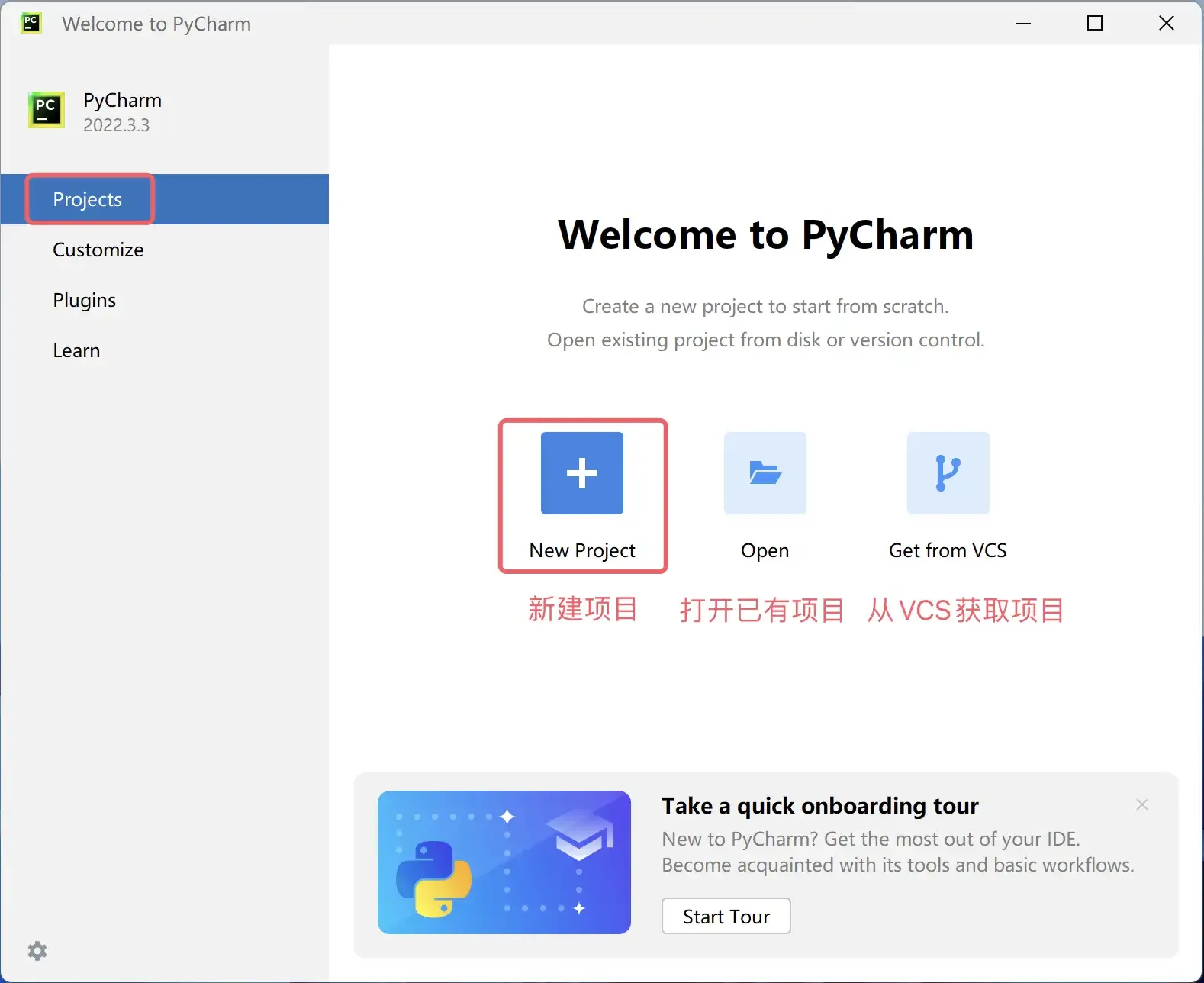
Next, we can click “New Project” in the “Projects” option to create a new project. Here you can also “open an existing project” or “get a project from a version control server (VCS)”, as shown below.
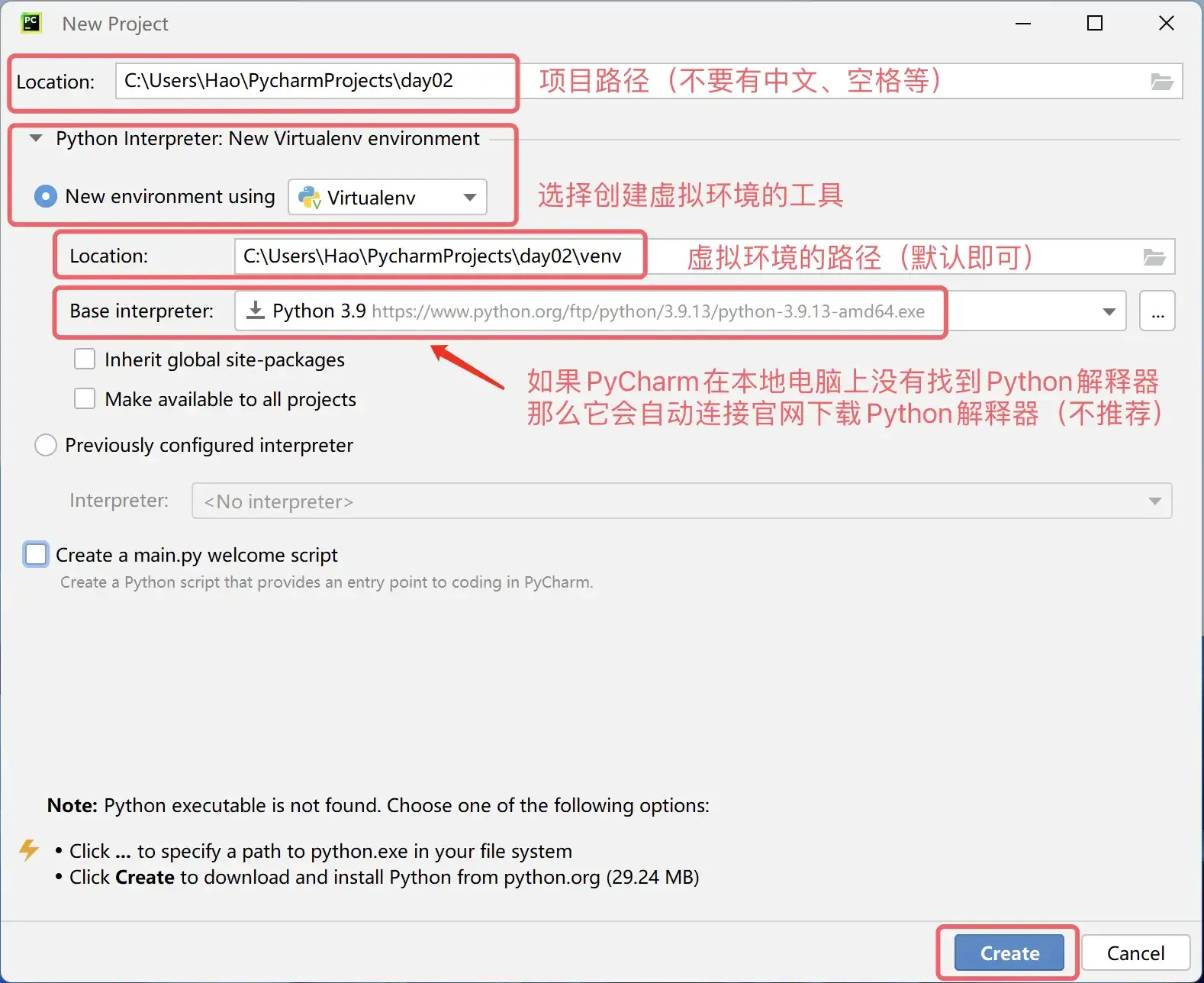
When creating a project, you need to specify the project path and create a “virtual environment”. We recommend that each Python project runs in its own dedicated virtual environment. If you don’t have a Python environment on your system yet, PyCharm will provide a download link from the official website. When you click the “Create” button to create the project, it will download the Python interpreter online, as shown below.
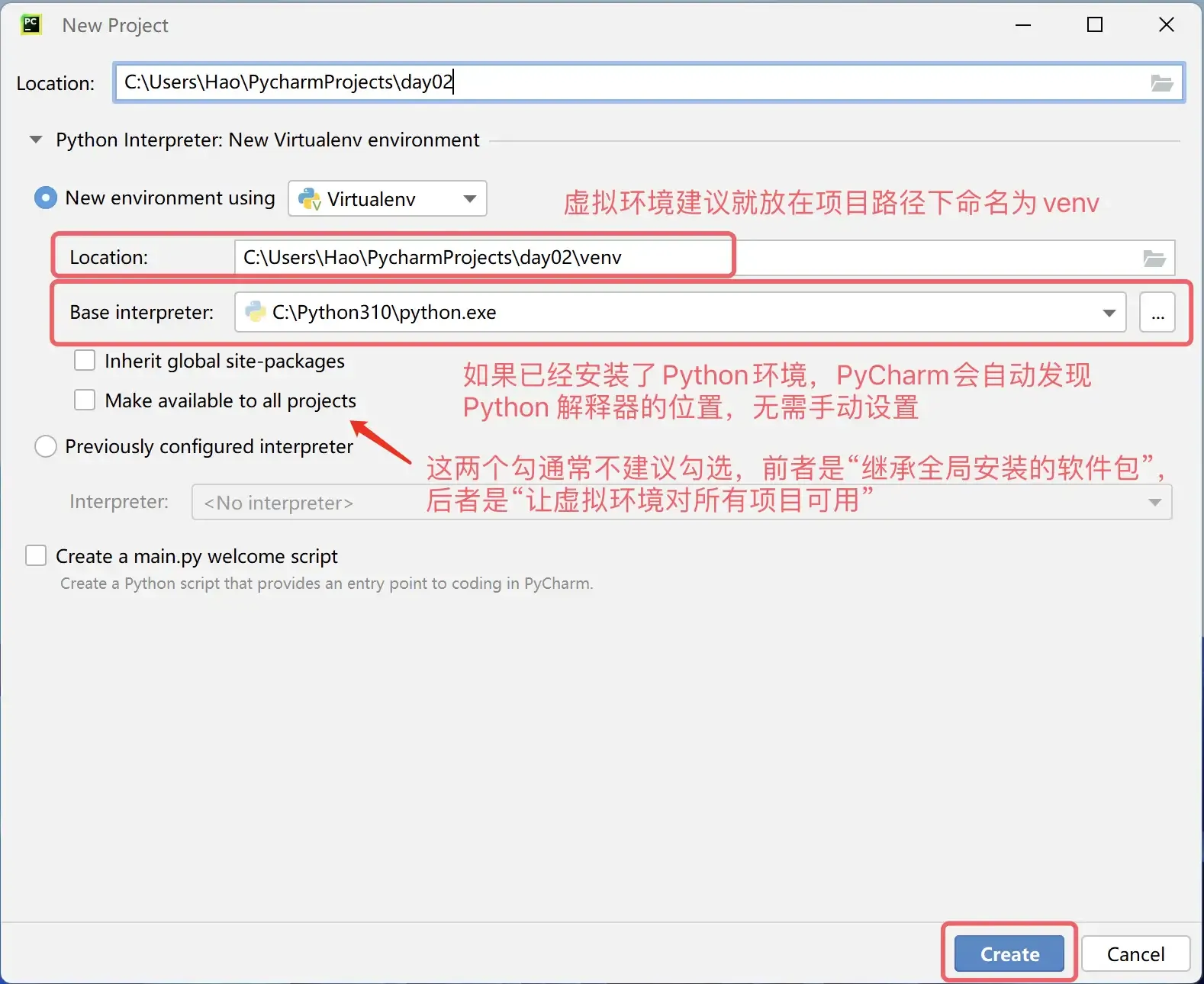
Of course, we don’t recommend doing this because we already installed the Python environment in the previous lesson. When there’s a Python environment on the system, PyCharm will usually automatically discover the location of the Python interpreter and create a virtual environment based on it, so what you see should look like the image below.
Note: The above screenshots are from a Windows system. If you’re using macOS, the project path and Python interpreter path you see will be different from above.
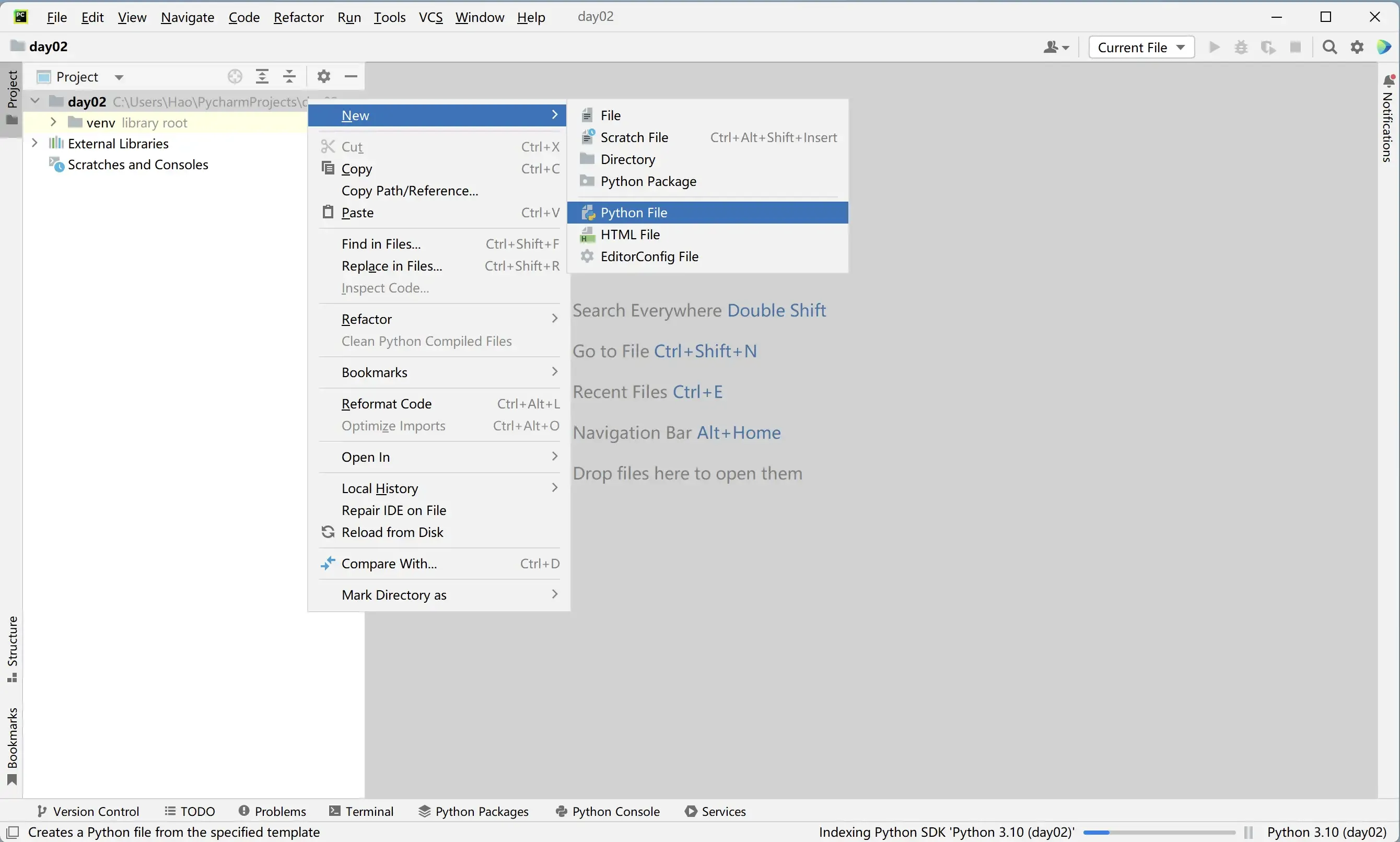
After creating the project, the screen shown below will appear. We can right-click on the project folder and select “Python File” under the “New” menu to create a Python file. When naming the file, it’s recommended to use a combination of English letters and underscores. The created Python file will automatically open in an editable state.
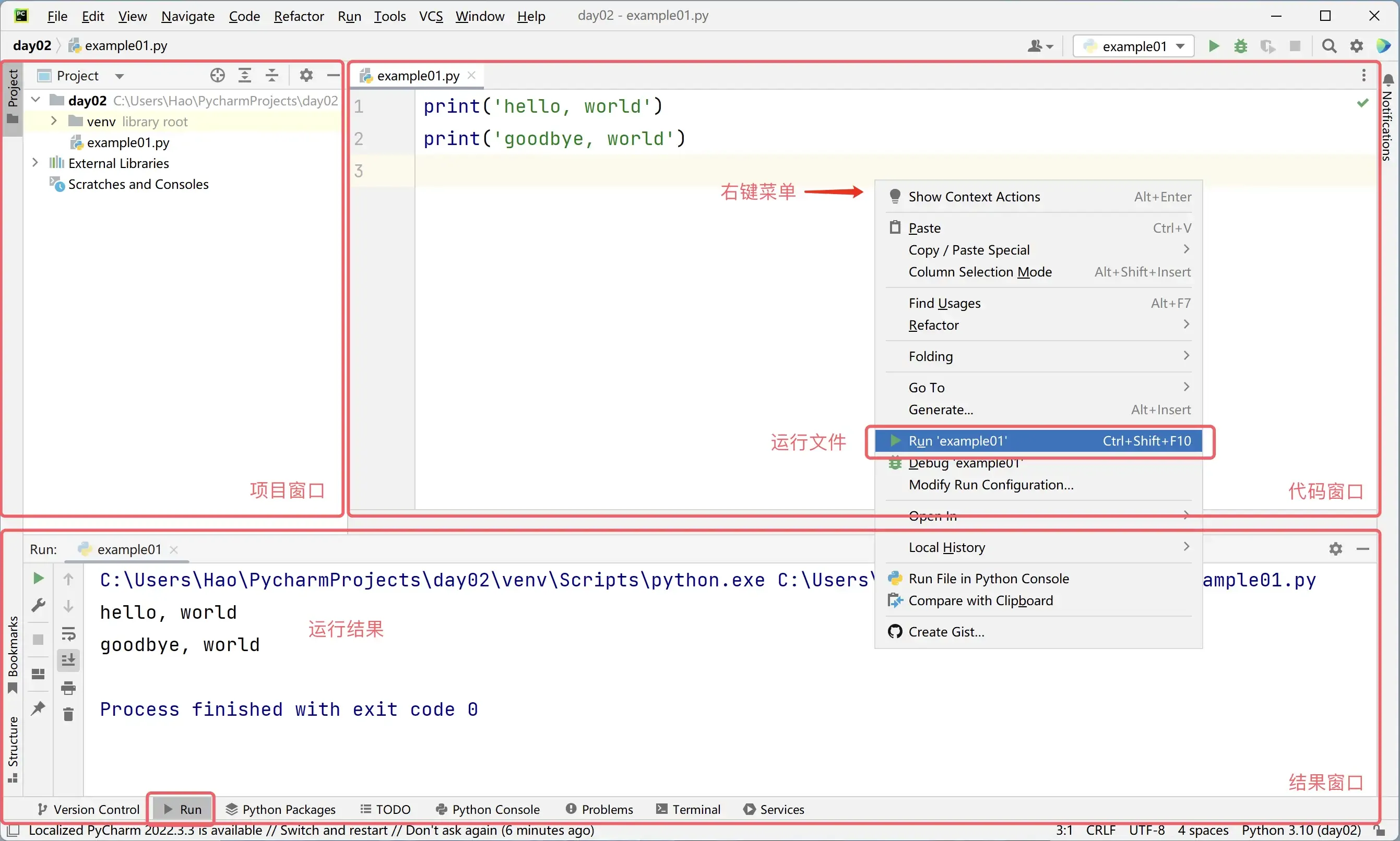
Next, we can write our Python code in the code window. After writing the code, you can right-click in the window and select the “Run” menu item to run the code. The “Run” window below will display the code execution results, as shown below.
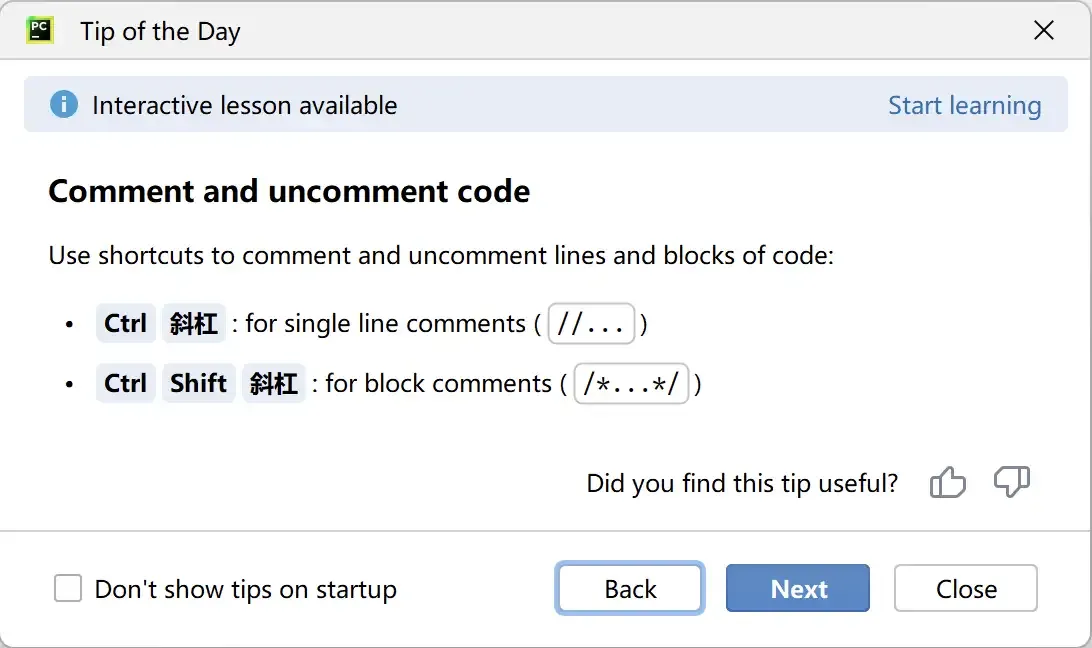
At this point, our first Python program is up and running. Pretty cool, right? By the way, PyCharm has a popup called “Tip of the Day” that teaches you some tips for using PyCharm, as shown below. If you don’t need it, just close it. If you don’t want it to appear again, you can check “Don’t show tips on startup” before closing.
Hello World
According to industry convention, the first program we write when learning any programming language outputs hello, world, because this code was written by the great Dennis Ritchie (father of C language, who developed the Unix operating system with Ken Thompson) and Brian Kernighan (inventor of awk language) in their immortal work “The C Programming Language”. Below is the Python version.
print('hello, world')Note: The parentheses and single quotes in the above code are entered in English input mode. If you accidentally write them in Chinese parentheses or single quotes, you’ll see error messages like
SyntaxError: invalid character '(' (U+FF08)orSyntaxError: invalid character ''' (U+2018)when running the code.
The above code has only one statement. In this statement, we used a function called print, which can help us output specified content. The 'hello, world' in the parentheses of the print function is a string, representing a piece of text content. In Python, we can use single quotes or double quotes to represent a string. Unlike programming languages like C, C++, or Java, statements in Python code don’t need semicolons to indicate the end. That is, if we want to write another statement, we just need to press Enter for a new line, as shown in the code below. Additionally, Python code doesn’t need to run by writing an entry function named main. Providing an entry function is necessary for writing executable C, C++, or Java code, which many programmers are familiar with, but it’s not necessary in Python.
print('hello, world')
print('goodbye, world')
If you’re not using an integrated development environment like PyCharm, we can also directly call the Python interpreter to run Python programs. We can save the above code as a file named example01.py. For Windows systems, assuming the file is in the C:\code directory, we can open “Command Prompt” or “PowerShell” and enter the following command to run it.
python C:\code\example01.pyFor macOS systems, assuming our file is in the /Users/Hao directory, we can enter the following command in the terminal to run the program.
python3 /Users/Hao/example01.pyTip: If the path is long and you don’t want to type it manually, we can drag the file directly into the “Command Prompt” or “Terminal”, which will automatically enter the complete file path.
You can try modifying the above code, such as changing hello, world in the single quotes to other content or writing several more such statements, and see what results you get. It’s worth reminding everyone that when writing Python code, it’s best to write only one statement per line. Although we can use ; as a separator to write multiple statements on one line, doing so will make the code very ugly and no longer have good readability.
Commenting Your Code
Comments are an important part of programming languages, used to explain the role of code within the code, thereby enhancing code readability. Of course, we can also temporarily remove code segments that don’t need to run by adding comments, so when you need to use this code again, you can just remove the comment symbols. Simply put, comments make code easier to understand but don’t affect code execution results.
Python has two forms of comments:
- Single-line comments: Start with
#and a space, can comment out an entire line from#onwards. - Multi-line comments: Start with three quotes (usually double quotes) and end with three quotes, typically used to add multi-line explanatory content.
"""
First Python Program - hello, world

Version: 1.0
Author: Luo Hao
"""
# print('hello, world')
print("Hello, World!")
Summary
At this point, we’ve already run our first Python program. Doesn’t it feel great?! As long as you keep learning, in a while, we’ll be able to do more and cooler things with Python. Today, programming is like English - it’s a skill that many people must master.